Program Settings
As discussed in other sections of this Help System, it is possible to customise the usability of the program, so as to better suit the needs and/or preferences of a particular user. This program/project tweaking facility is available from the Program Settings panel, that can be accessed through Tools > Settings… or through the corresponding toolbar button  . The Program Settings panel is subdivided into four tab windows, which provide access to different type of settings, described below. It is noted that changes to such settings will only be effected for records that were loaded after these changes.
General
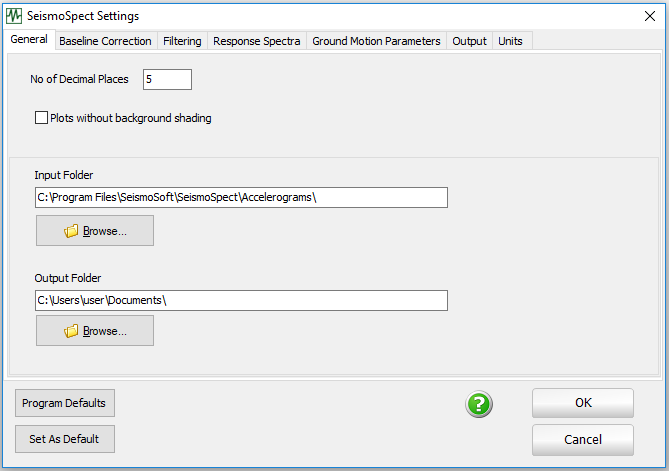
Herein, the user may define the number of decimal places to be used in the display of results (default is 5), as well as changing the default folders from where original records my be read and processed records written to. In addition, users may also disable background shading of plots, which may be useful for printing purposes.
Filtering
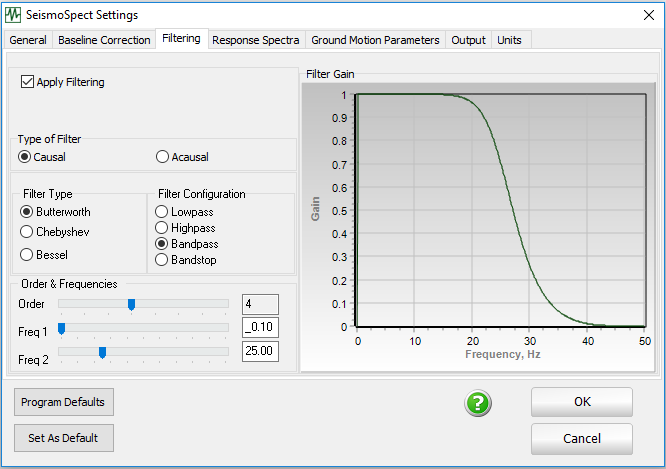
Herein, the user may choose whether causal or acausal filters will be employed when lowpass, highpass, bandstop or bandpass filtering is carried out on the accelerogram. Causal filters are used by default.
Baseline Correction
This separator allows users to enable the baseline correction and chose which polynomial type should be used. Refer to here for further details.

Response Spectra
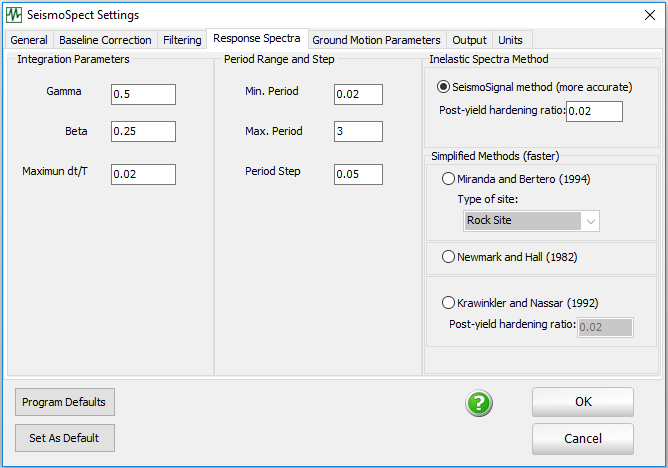
Through this panel a user can define the period range and step to be considered in the computation of the response spectra, the dynamic analysis integration parameters (also employed in the computation of response spectra), and the method employed in the computation of inelastic spectra. Refer to here for further details.
Ground motion parameters
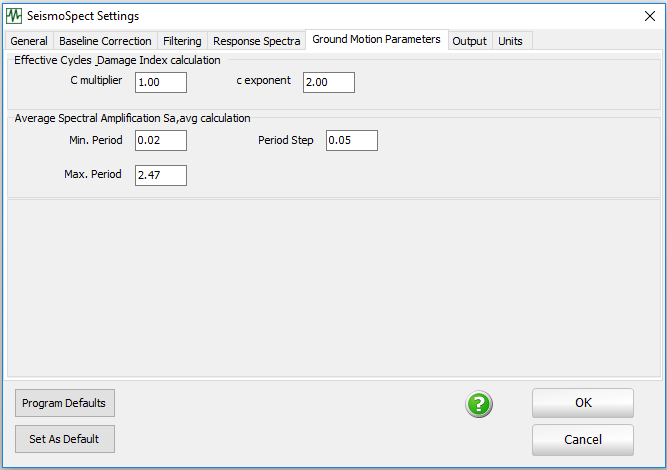
Using this module the user is able to define the values of variables that are used for the computation of certain Ground Motion Parameters.
Output
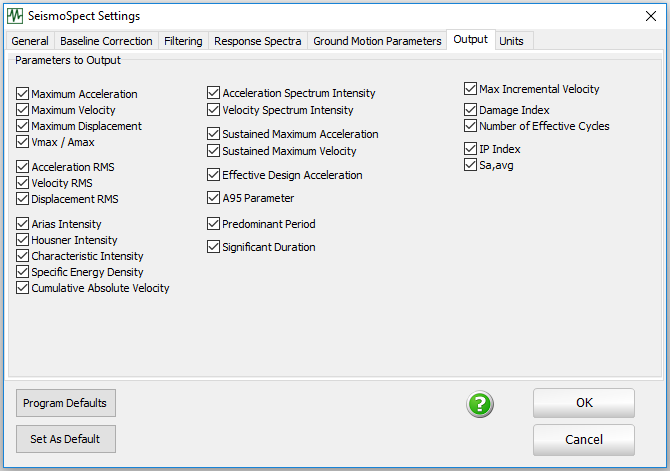
Using this module, the user is able to select which ground motion parameters will be computed and shown as output by the program.
Units
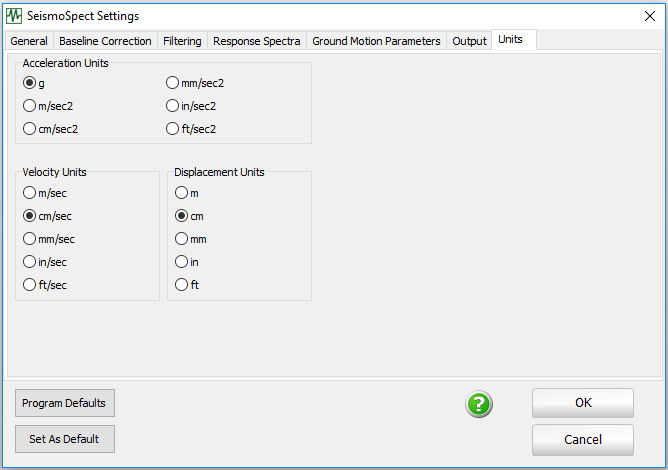
Herein a user has the possibility of changing the units in which acceleration, velocity and displacement will be shown.
Common to all tab windows are the Program Defaults and Set as Default options found at the bottom of the Program Settings panel. The Set as Default option is employed whenever the user wishes to define new personalised default settings, which will then be used in all new projects subsequently created. The Program Defaults, on the other hand, can be used to reload, at any time, the original program defaults, as defined at installation time.
Note, however, that the Program Defaults option does not change the default program settings, it simply loads the installation settings in the current project. Hence, if the user has previously personalised the default settings of the program (using the Set as Default option) and then wishes to revert the program default settings back to the original installation defaults, he/she should first load the Program Defaults and then choose the Set as Default option. Note also that changes in the program settings will only be effected for records that were loaded after these changes.